How to highlight your cursor in Figma on a Mac screen share
You are three people into a design review, sharing your screen, talking about the spacing on a card. “This one — no, the one above it — the padding here.” Everyone is hunting for a 12-pixel arrow on a canvas with four hundred elements on it.
Figma is unusually bad for this, and not because Figma did anything wrong.
Why does your cursor disappear in a Figma review?
A Figma canvas is dense on purpose. Frames, components, text layers, icons and colour swatches fill the screen edge to edge, and the macOS pointer is a small monochrome arrow drawn on top of all of it. Zoom out to show a whole flow and the thing everyone is meant to follow becomes the least visible object on screen.
Screen sharing makes it worse. Compression softens fine detail, the cursor is the finest detail on the canvas, and your viewers are watching a video of your screen rather than the screen itself. You know where you are pointing. They are a half-second behind, scanning.
Does Figma highlight your own cursor?
No. Figma draws a labelled, coloured cursor for every other person in the file, which is what makes multiplayer legible. Your own pointer stays the plain system arrow. There is no setting for a spotlight, a ring, or a click effect on your own cursor, because Figma solves the “who is doing what” problem, not the “look here” one.
That distinction matters for a review, because in a review nobody is looking at where your collaborators are. They are looking at where you are.
What do people actually see when you share a Figma screen?
Two different things, and mixing them up is the usual source of confusion.
In the Figma file itself, other people see your ordinary Figma cursor with your name on it. A cursor tool on your Mac does not change that. Figma renders collaborator cursors from its own data, not from your screen.
In a screen share, they see your screen — so they see exactly what you see, cursor effects included. That is the surface Pokey works on: it draws a hand pointer over your whole desktop, and anything capturing your desktop captures it too. Zoom, Google Meet, Loom, OBS, QuickTime.
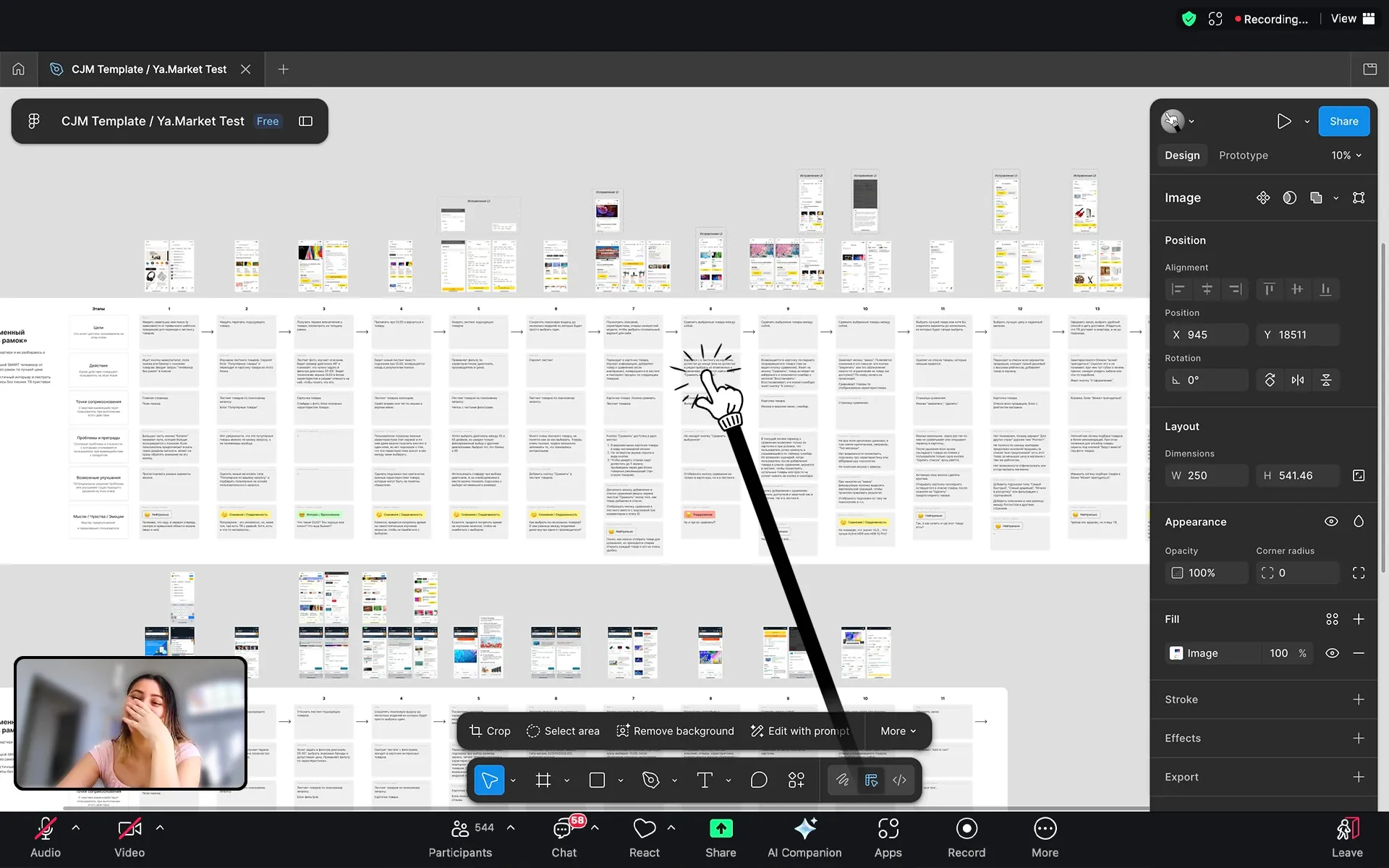
A Figma file shared on a Zoom call. The pointer is drawn over the canvas, so everyone watching the share sees it — including the person who stopped following three minutes ago.
One rule decides whether it shows up:
Share the entire screen, not a single window. When macOS captures one window it records only that window’s contents, and a system overlay is not part of them. Share the whole screen and the pointer is there.
How do you point at a layer without selecting it?
Turn on Presentation Mode with ⌃⌥T. Clicks stop reaching what is underneath them — the pointer taps, and nothing else happens. No layer gets selected, nothing gets dragged, the canvas stays exactly where you left it.
This is the part that matters most in Figma specifically. A click on a Figma canvas is never neutral: it selects the layer under it, and a click that travels two pixels drags the layer instead. Half the muscle memory of pointing at something — tap, tap, tap while you talk — is also the muscle memory of quietly rearranging somebody’s file in front of them.
Your keyboard stays fully live while Presentation Mode is on, so arrow keys, zoom shortcuts and everything else still work. Turn it off with the same shortcut and your normal cursor comes straight back.
Does it work with the Figma desktop app as well as the browser?
Both, with nothing to configure. Pokey draws at the macOS system level rather than inside a page, so it does not care whether Figma is running in Chrome, Safari, Arc or the Figma desktop app. There is no browser extension to install and no per-app setup.
The same is true of everything else on your screen. Switch from Figma to Slack to a Keynote deck mid-call and the pointer follows you across all of it, on every monitor.
How do you set it up for a design review?
- Turn the pointer on with ⌃⌥P, or from the menu bar icon.
- Pick a style that suits the room. Four are available — tiny hand, cat paw, middle child and a plain classic arrow for calls where the first three would read as a joke.
- Set how loud the taps are. Five levels, from a small nudge to something nobody can miss, and it scales with how fast you click: the more emphatic you get, the bigger the poke.
- Start the screen share and pick the entire screen.
- Hit ⌃⌥T before you start pointing at layers.
If you want the taps to be audible as well as visible, share your system audio too — the tap sound is ordinary system audio, so it travels the same way as a video’s soundtrack.
Questions people ask
Does it slow Figma down? No. It is a drawing layer over your desktop, not a plugin or an extension. Figma does not know it is there.
Can I still work normally with the pointer on? Yes. Outside Presentation Mode, clicking, dragging, selecting and every shortcut behave exactly as before. Only the look of the cursor changes.
Will it show up in a recording? Yes, under the same rule as a live call: record the entire screen and the pointer is in the recording. Record a single window and it is not.
What about Miro, Canva and other multiplayer canvases? Same answer as Figma. Collaborators inside the tool see your ordinary cursor; anyone watching your screen share sees the pointer.
Which macOS do I need? macOS 26 or later, 27 included.
More about how it behaves on a live call is on the main page, and the rest of the questions are in the FAQ.