How to highlight your cursor in a Loom recording on Mac
A live call has a safety net. If people lose track of your cursor, somebody says “sorry, where?” and you go back. It costs eight seconds and you probably did not even notice it happening.
A recording has no such net. The viewer is alone, three days later, and when they lose the thread their options are to scrub backwards or to give up. Most of them give up quietly, and you never find out which part lost them.
Does Loom already highlight your cursor?
It has tools in this area. Loom’s own description of them: “Use the mouse follow, highlight, and drawing tools to help focus on what matters.” If you record and publish everything inside Loom, start there — it is built into the thing you are already using.
The limit is not what they do. It is where they work.
Why does that matter if the tools exist?
Because they are Loom’s tools, and they stop at Loom’s edge.
Record the same walkthrough in QuickTime for a client who cannot open a Loom link. Share it live on a Zoom call because somebody asked a follow-up question. Stream it through OBS. Drop it on YouTube and re-record the intro. Every one of those is the same screen, the same hand, the same explanation — and none of them carry the tools you set up in Loom.
A cursor that lives at the macOS system level does not have this problem. It is drawn over the whole desktop, so every recorder and every share picks it up identically: Loom, QuickTime, OBS, Zoom, Meet. You set it once and stop thinking about which tool you happen to be in today.
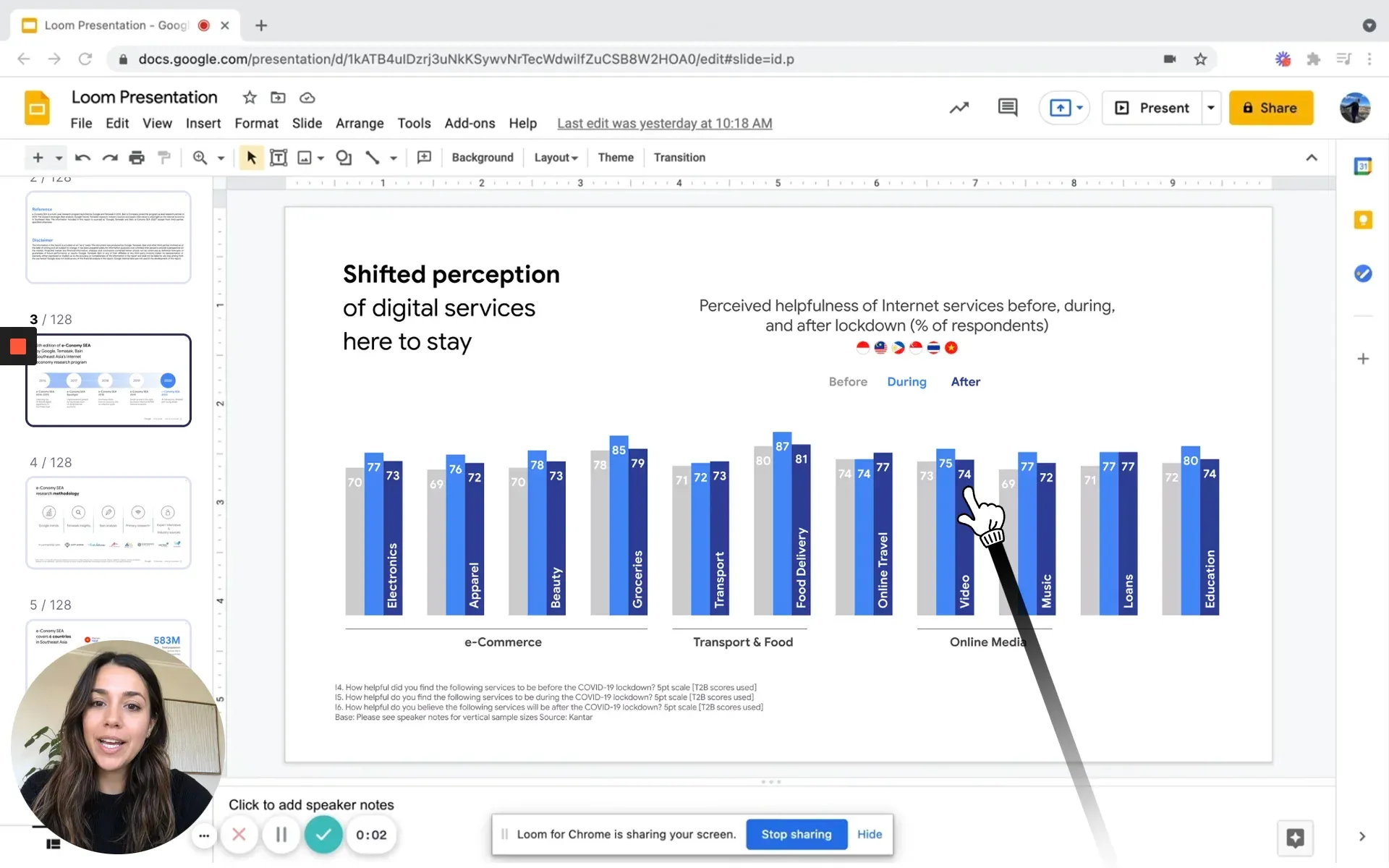
Loom recording a deck. The pointer is part of the capture, not part of Loom.
What does Loom actually capture?
Whatever you pointed it at. One setting decides whether a system-level pointer is in the file:
Record the entire screen, not a single window. When macOS captures one window it records that window’s contents and nothing else, and a system overlay is not part of them. Record the whole screen and the pointer is there.
This is the single most common reason a cursor tool looks broken in a recording. It is working — the capture was just scoped to one window.
How do you walk through an app without clicking things?
Turn on Presentation Mode with ⌃⌥T and clicks stop reaching what is underneath. The pointer taps; nothing else happens.
This is worth more in a recording than on a call. Live, if you accidentally select the wrong row or drag a panel out of place, you say “ignore that” and move on. In a recording the mistake is permanent unless you re-record or edit it out, and both cost more than the thirty seconds you saved by not turning the mode on.
Your keyboard stays live, so you can still scroll, switch tabs and use shortcuts while clicks are disarmed.
Should the taps be audible?
Usually not, in a recording. A knock on every click is a good beat on a live call, where it pulls attention back in real time. Across a six-minute recording it becomes a texture the viewer stops hearing and starts noticing.
If you want it anyway, the tap plays as ordinary system audio, so it lands in the recording the same way any other system sound does. There is a volume control and an off switch in the menu bar.
Does it work for the other things you record?
Yes, and that is most of the argument. The same pointer appears in:
- Loom, in the browser or the desktop app
- QuickTime screen recordings
- OBS captures and live streams
- Zoom, Meet and Teams, live or recorded
Nothing is configured per app. There is no browser extension and no per-tool setup, because it is not running inside any of them.
When is this the wrong call?
- A recording for a formal or external audience, where a cartoon hand reads as not taking it seriously. There is a plain classic arrow pointer for exactly this.
- Recordings with no pointing in them — a talking-head update, a webcam-only message. If nobody needs to follow a cursor, do not add one.
- Very long recordings. A pointer that is emphatic for four minutes is tiring for forty. Dial the tap expression down, or toggle it on only for the parts that need it.
Questions people ask
Do viewers need to install anything? No. They are watching a video. Nothing is required at their end.
Will it show up if I trim or edit the recording afterwards? Yes. It was captured as part of the picture, so it survives any editing the way the rest of the frame does.
Can I still click normally while recording? Yes. Outside Presentation Mode everything behaves exactly as before — only the look of the cursor changes.
Which macOS do I need? macOS 26 or later, 27 included.
More about how it behaves on a live call is on the main page, and the rest of the questions are in the FAQ.