How to highlight your cursor in a Zoom screen share on Mac
Everybody has sat through this call. Someone shares their screen, starts talking about a specific number in a specific cell, and for the next fifteen seconds the entire meeting is a search party for a small grey arrow.
Zoom is not indifferent to the problem. It ships tools for it. They are just built for a different job than the one most people are doing.
Does Zoom already have a way to highlight the cursor?
Sort of. While you are sharing your screen, Zoom’s annotation toolbar gives you drawing tools and a spotlight-style pointer you can wave at things. For marking up a static slide — circling a figure, underlining a heading — it does the job it was designed for.
What it does not give you is a cursor that stays visible while you use your Mac normally. That is a different feature, and Zoom does not have it.
Why isn’t the annotation spotlight enough?
Because annotating and working are two modes, and you can only be in one of them.
Turn annotation on and your pointer becomes a drawing instrument: clicks make marks instead of reaching the app underneath. That is fine for a slide you are talking over. It falls apart the moment the thing on screen is software you are actually driving — a spreadsheet you are filtering, a dashboard you are clicking through, a design file you are navigating. You end up toggling annotation on to point, off to click, on to point again, and the toggling is the part your audience remembers.
A cursor tool sits in the other half of that trade. The pointer is always visible, and your clicks always land where you sent them.
What does Zoom actually capture?
Whatever is on the screen you chose to share. Pokey draws its hand pointer at the macOS system level rather than inside any one app, so anything recording your desktop records it too — Zoom included.
One setting decides whether it shows up at all:
Share the entire screen, not a single window. When macOS captures a single window it records only that window’s contents, and a system-level overlay is not part of them. Share the whole screen and the pointer is there.
This is the single most common reason a cursor tool appears not to work on a call. It is working; the capture is just scoped to one window.
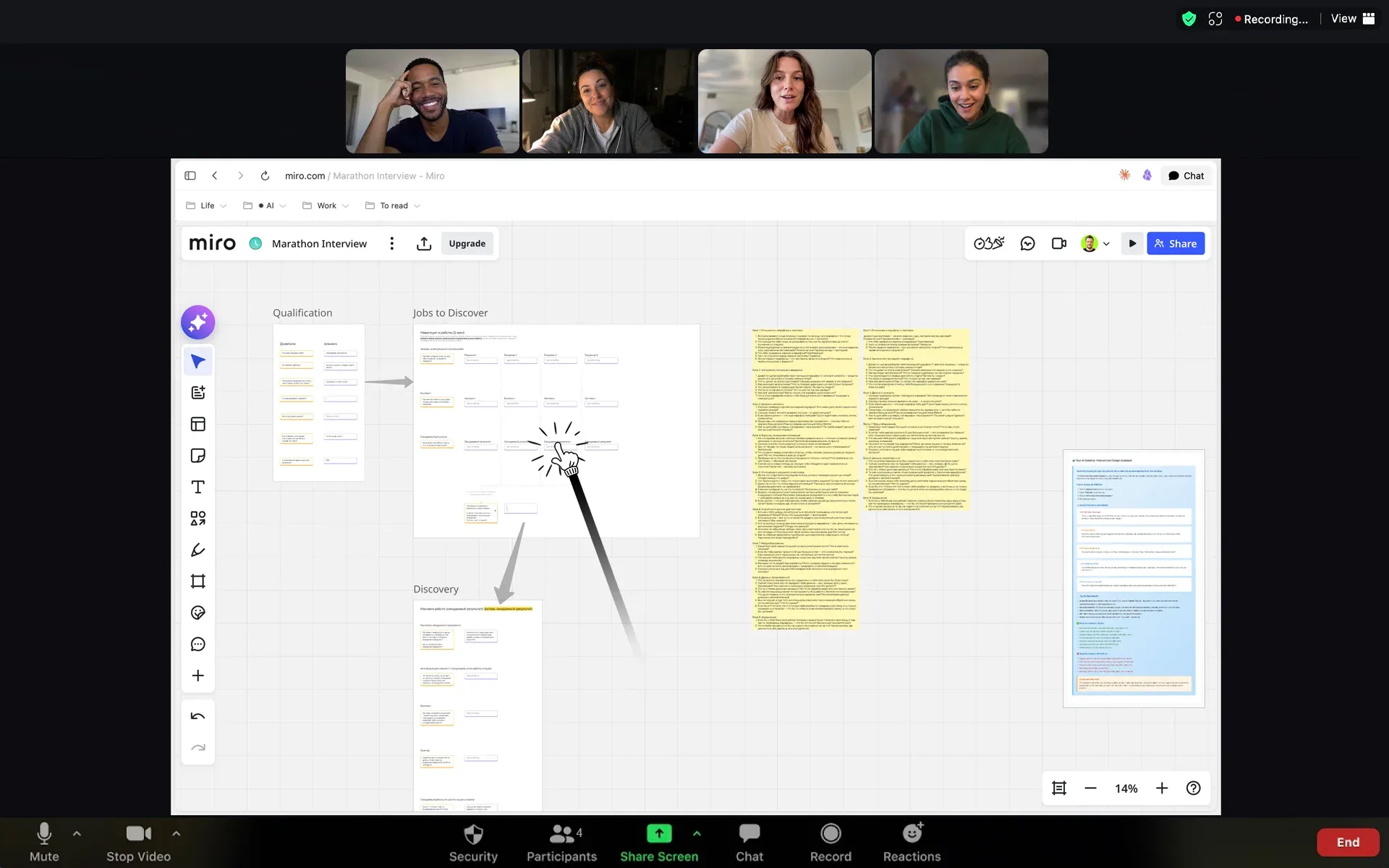
A Zoom call with the whole screen shared. The pointer is part of the picture everyone else is watching.
Can people hear the taps as well as see them?
Yes, if you share your audio. Each tap makes a small knock, and it plays as ordinary system audio rather than through some private channel — so it travels exactly the way a video’s soundtrack does. Tick Share sound when you start the screen share and the knock reaches the call with everything else.
Leave it off and the pointer is silent and still perfectly visible. There is a volume control in the menu bar, and an off switch, for the calls where a knocking sound is the last thing anybody needs.
Does it show up in the Zoom recording?
Yes, under exactly the same rule as the live call. The recording captures the shared screen, and if that share is the entire screen, the pointer is in the file. Record a single window and it is not.
Worth knowing if you are recording a session to send round afterwards, which is usually when following the cursor matters most — nobody watching a recording can ask you to point again.
How do you set it up before a call?
- Turn the pointer on with ⌃⌥P, or from the menu bar icon.
- Pick a pointer style. Four of them: tiny hand, cat paw, middle child, and a plain classic arrow for calls where the first three would land badly.
- Choose how emphatic the taps are — five levels, and it scales with how fast you click. Gentle when you are walking through something, wilder when you are making a point.
- Start the share and pick the entire screen. Tick Share sound if you want the taps audible.
- If you are presenting something clickable and want to point without touching it, hit ⌃⌥T for Presentation Mode: clicks tap the pointer and nothing underneath reacts. Your keyboard stays live the whole time.
Questions people ask
Do other people need to install anything? No. They are watching a video of your screen. Nothing is required at their end.
Does it work in Zoom on a second monitor? Yes. The pointer works across every monitor with no setup, and Zoom shares whichever screen you pick.
Will it interfere with Zoom’s own annotation tools? No, they are unrelated. Annotation still behaves the way it always has if you turn it on.
What about Google Meet, Loom or OBS? Same mechanism, same rule about sharing the whole screen. Nothing about this is Zoom-specific except the Share sound checkbox.
Which macOS do I need? macOS 26 or later, 27 included.
More about how it behaves on a live call is on the main page, and the rest of the questions are in the FAQ.